Private training, booked around each trainer.
Clients pick a trainer or Anyone. They see open times based on each trainer’s hours, time off, and existing bookings.
Choosing a trainer and connected calendars are on Starter and Pro.
Example: Forge Strength Lab
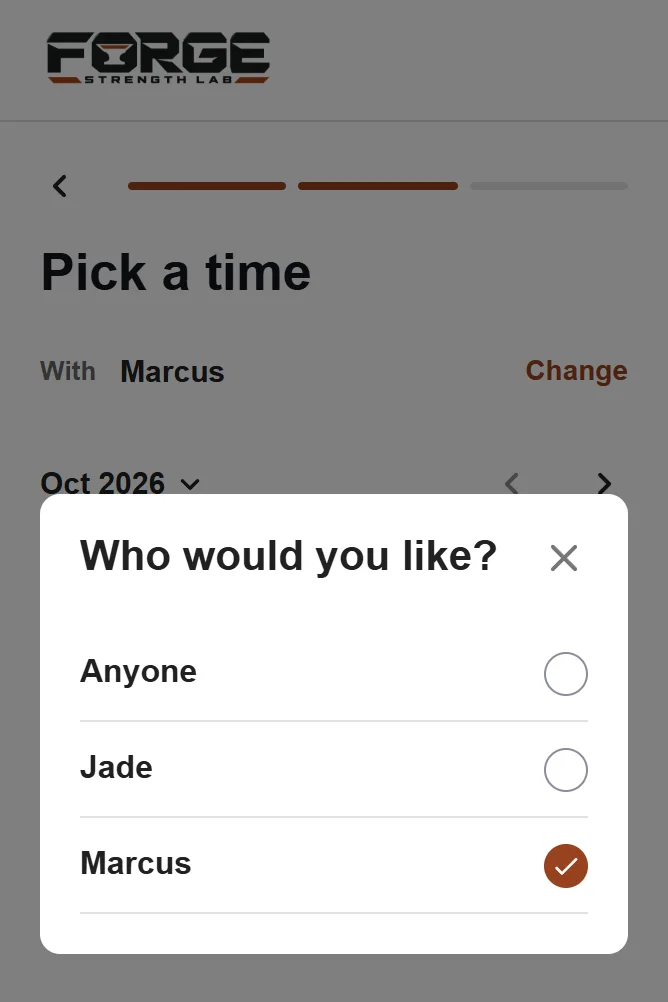
Trainer schedules and first sessions.
A life outside the gym
Each trainer can connect Google or Microsoft and turn on busy-time blocking to keep clients from booking over a dentist appointment. New sessions appear on that calendar as private events.
Calendar syncClients you haven’t met
Want to speak with someone before their first session? Turn on booking approval to review every request from your booking page. The requested time stays reserved while you decide.
Approvals
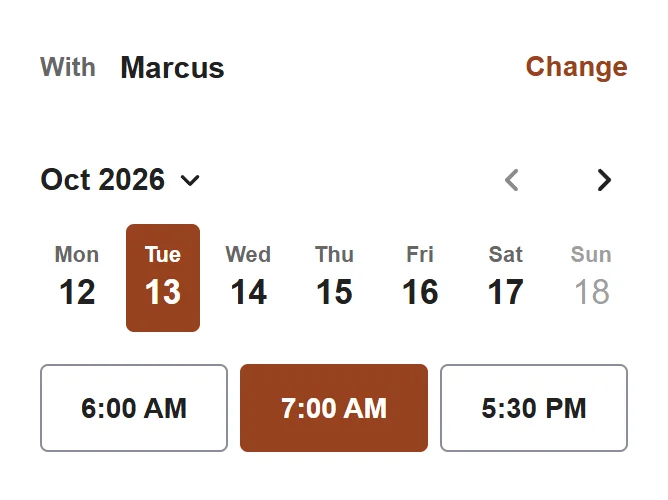
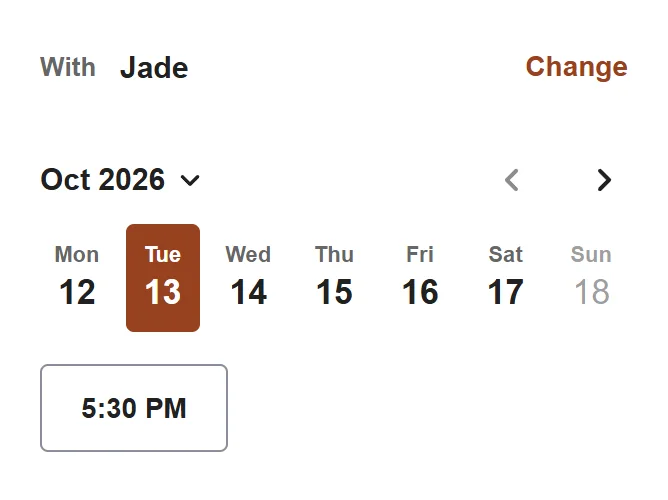
Each trainer keeps their own hours.
One trainer might start at 6 AM while another takes evening clients. Set hours and time off for each trainer so clients see when they’re free.
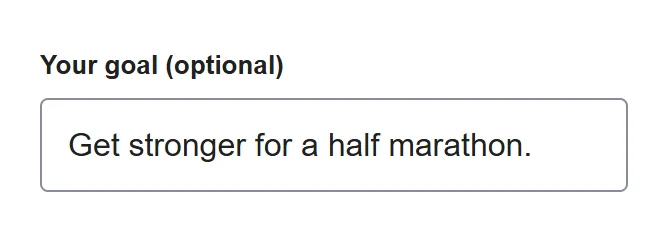
Goals before the first session.
Ask about their goal, their experience, and the days they can train. The answers come with the booking, so the first session starts with a plan.
How Forge would set it up.
- Hours
- Marcus Reid, Mon–Sat 6 AM–8 PM · Jade Nguyen, Mon–Sat 12 PM–8 PM
- Calendars
- Google Calendar for Marcus Reid and Jade Nguyen
- Payment
- Pay at visit
- Plan
- Starter for two bookable people
Questions.
Yes. You can set your hours in SchedulEase without connecting a calendar. Connect Google or Microsoft and turn on busy-time blocking if you want clients to book around your calendar events.
Yes, that’s how Forge works. On Starter and Pro, you can take a deposit or the full price when they book instead.
- Payments through your own Stripe or Square
- Export client records to CSV
- Security and data